
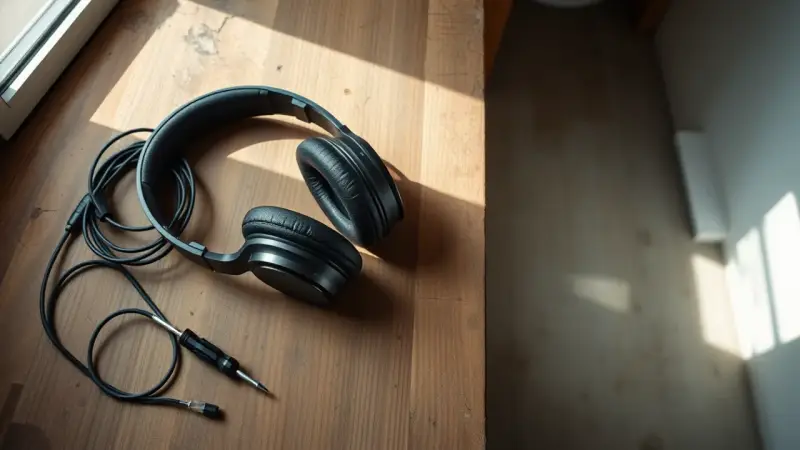
When wired headphones play no sound, the cause is usually something simple. The volume may be muted, the plug may not be fully seated, or your phone or computer may be sending audio to the wrong output. Start by turning the volume up and pushing the plug all the way in. Then try the headphones on a second device. That test tells you whether the headphones or the device is at fault.
If the headphones work on the second device, the problem is in your original device’s settings, drivers or port. If they stay silent everywhere, the cable, plug or speakers (drivers) inside the headphones have probably failed.
Why are my wired headphones not making sound?
Wired headphones usually go silent because of a setting, a bad connection or physical damage. These are the common causes, roughly in the order you should rule them out:
- Muted or low volume. The device, the app or an inline volume dial or mute switch on the cable may be turned all the way down.
- Plug not fully inserted. A thick phone case or lint in the port can stop the plug a few millimeters short, so you get no sound or sound from only one side.
- Wrong output device. Computers, and phones paired with Bluetooth speakers or earbuds, may send audio somewhere other than your headphones.
- Wrong port. On desktop PCs, the pink jack is usually the microphone input. Headphones go in the green jack or the one marked with a headphone icon.
- Adapter or dongle issue. Headphones that use a USB-C or Lightning adapter depend on that adapter working and being compatible with your device.
- Driver or software glitch. On Windows, a damaged audio driver or an audio enhancement can block sound.
- Broken wire or blown driver. The cable often breaks near the plug or where it splits to each ear. The speaker itself can also fail.
Quick fixes for wired headphones with no sound
Work through these steps in order, starting with the quickest checks.
- Turn up every volume control. Raise the volume on the device and in the app you’re using, and check that nothing is muted. If your cable has a dial or mute switch, turn it up or switch it off.
- Unplug and replug firmly. Push the plug in until it clicks or sits flush. If it won’t go all the way in, take off your phone case and try again.
- Check that you’re using the right jack. On a desktop, use the headphone or line-out jack, not the microphone jack. If the front-panel jack is silent, try the one on the back.
- Clean the port and the plug. Power the device off. Blow out the port with compressed air, or gently work out lint with a dry cotton swab or a wooden toothpick. Wipe the plug with a dry cloth. Never put metal into the port.
- Turn off Bluetooth. A paired speaker, car stereo or set of earbuds can take over the audio without you noticing. Turning Bluetooth off sends sound back to the wired output.
- Restart the device. A restart clears audio glitches that leave the device “stuck” on another output.
- Test on another device. Plug the headphones into a different phone, laptop or tablet. Also try a different pair of headphones in your original device. Together, these two tests show you where the fault is.
- Do the wiggle test. Play music and slowly bend the cable near the plug, along its length and at the split. If the sound cuts in and out, a wire inside is broken.
How to fix headphones with no sound by device
Windows 11 and Windows 10
Windows can detect the headphones but keep playing audio through the speakers or a monitor. One sign is a volume meter that moves while you hear nothing.
- Pick the output. Go to Start > Settings > System > Sound. Under the output section, choose your headphones. You can also select the speaker icon on the taskbar and pick the device there.
- Turn off audio enhancements. In Sound settings, select your headphones and turn Audio enhancements off. On older setups, open More sound settings > Playback, select the device, then choose Properties > Advanced. There you can turn off enhancements or try a different default format.
- Run the troubleshooter. Search the Start menu for “sound troubleshooter,” or use the troubleshoot option in Sound settings.
- Update or reinstall the audio driver. Right-click Start and open Device Manager. Expand Sound, video and game controllers and right-click your audio device. Choose Update driver. If that doesn’t help, choose Uninstall device and restart, and Windows will reinstall the driver.
- Check the manufacturer’s audio app. Some desktop motherboards and laptops have their own audio control app with jack-detection settings. A front-panel jack can stay silent until you enable it there.
Mac
- Select the output. Open System Settings > Sound > Output and choose your headphones. On older macOS versions, it’s System Preferences > Sound > Output.
- Check the menu bar. Click the sound or Control Center icon and confirm the headphones are the active output.
- Restart if the headphones still don’t appear in the list.
iPhone and iPad
- Check the adapter. Recent iPhones have no 3.5 mm jack, so wired headphones connect through a Lightning or USB-C adapter or cable. Reseat both ends. If you can, try a different adapter.
- Look for debris. Check the charging port with a flashlight for lint. It can stop the plug from seating fully.
- Update and restart. Go to Settings > General > Software Update, then restart the device.
- Check the audio output. Open Control Center and make sure audio isn’t being sent to a Bluetooth or AirPlay device.
Android and Samsung Galaxy
- Check volume and output. Press a volume button and open the expanded volume panel to see media volume. Turn Bluetooth off.
- Use the right USB-C adapter. Many phones without a headphone jack need an adapter with a built-in DAC (digital-to-analog converter). A DAC is a small chip that turns digital audio into the signal headphones can play. A cheap passive adapter may give you no sound at all.
- Test in Safe Mode. Restarting in Safe Mode turns off third-party apps. If sound works there, an app such as an equalizer or audio booster is interfering.
- Update the software. Look for Software update in Settings and install any update that’s waiting.
How do I fix wired earphones when only one side works?
When only one earphone works, the plug is often not fully inserted, or a wire inside the cable is broken. Push the plug all the way in, with the phone case off, and rotate it slowly while audio plays. If the sound comes back at a certain angle, the plug or the jack is worn.
Next, check the audio balance. A balance slider pushed to one side, or mono audio turned on, can make one side seem dead.
- iPhone: Settings > Accessibility > Audio & Visual, then center the Balance slider.
- Windows 11: Settings > Accessibility > Audio, where you can check Mono audio, and the headphone’s properties in Sound settings, where you can check left/right balance.
- Android: open Accessibility in Settings and look for the audio adjustment or balance options.
If one side stays silent on every device, the wire to that ear or the speaker in it has failed. Cheap earbuds usually aren’t worth repairing. Re-soldering a plug is possible if you’re comfortable with a soldering iron, but headphones still under warranty should go back to the manufacturer.
Wired headphone problems: symptoms and fixes
| Symptom | Likely cause | Fix |
|---|---|---|
| No sound on any device | Broken cable, plug or drivers | Wiggle test; repair or replace |
| Works elsewhere, silent on one device | Wrong output, driver, or dirty port | Select output, clean port, update driver |
| Volume meter moves but nothing plays (PC) | Audio sent to another device | Choose headphones in Sound settings |
| Only one side works | Plug not seated, balance setting, broken wire | Reseat plug, center balance, test elsewhere |
| Sound cuts in and out | Damaged cable or worn jack | Wiggle test; try another device |
| Crackling, buzzing or distortion | Blown driver or dirty contacts | Clean plug; replace if it persists |
| Silent through USB-C adapter | Incompatible or faulty adapter | Use an adapter with a built-in DAC |
When to get your headphones or device repaired
Get the device or headphones repaired when the fixes above don’t work. Contact the manufacturer’s official support, especially while the warranty still applies, if you see any of these signs:
- Every pair of headphones is silent in one device, even after you’ve cleaned the port, updated, and checked the settings. The jack or audio hardware is probably faulty.
- Liquid damage. A phone or laptop that got wet can lose its headphone jack or port. Don’t try to dry it with heat.
- A visibly loose or wobbly jack, or a plug that snapped off inside the port.
- Exposed wires or a cracked plug on the headphones themselves.
Before you send in a phone or computer, back up your data. Service sometimes includes a reset.
FAQ
– How do I tell if my headphones are blown?
Blown headphones usually crackle, rattle, buzz or distort at normal volume, or one side goes silent on every device you try. Test them on a second device first so you can rule out the source. If the distortion follows the headphones from device to device, the driver is damaged and the headphones generally need replacing.
– Why do my wired headphones keep cutting out?
Wired headphones that keep cutting out usually have a broken wire near the plug or the split, or a worn, dirty jack. Bend the cable gently while music plays. If the sound drops at one spot, that’s where the wire is broken. Also turn off Bluetooth, which can grab the audio when another device connects.
– How do I fix a headset I can’t hear out of but the mic works?
A headset whose mic works but plays no sound is usually set to the wrong output, or plugged into a port that only carries the microphone signal. Pick the headset as the output in your sound settings. On a PC with separate pink and green jacks, use a splitter adapter so the headset’s single plug connects to both.
– Can I fix wired headphones at home?
Yes. Many no-sound problems are fixed at home by cleaning the port, reseating the plug, changing settings or updating drivers. A broken wire can be cut out and the plug re-soldered, but that takes tools and some skill. For inexpensive earbuds, buying a new pair is usually more practical.